A year progress widget for iPhone.
See the year pass in real clothing buttons. 365 Buttons brings a quiet day counter to your Home Screen and Lock Screen, with an app for exploring the days behind you and the days ahead.
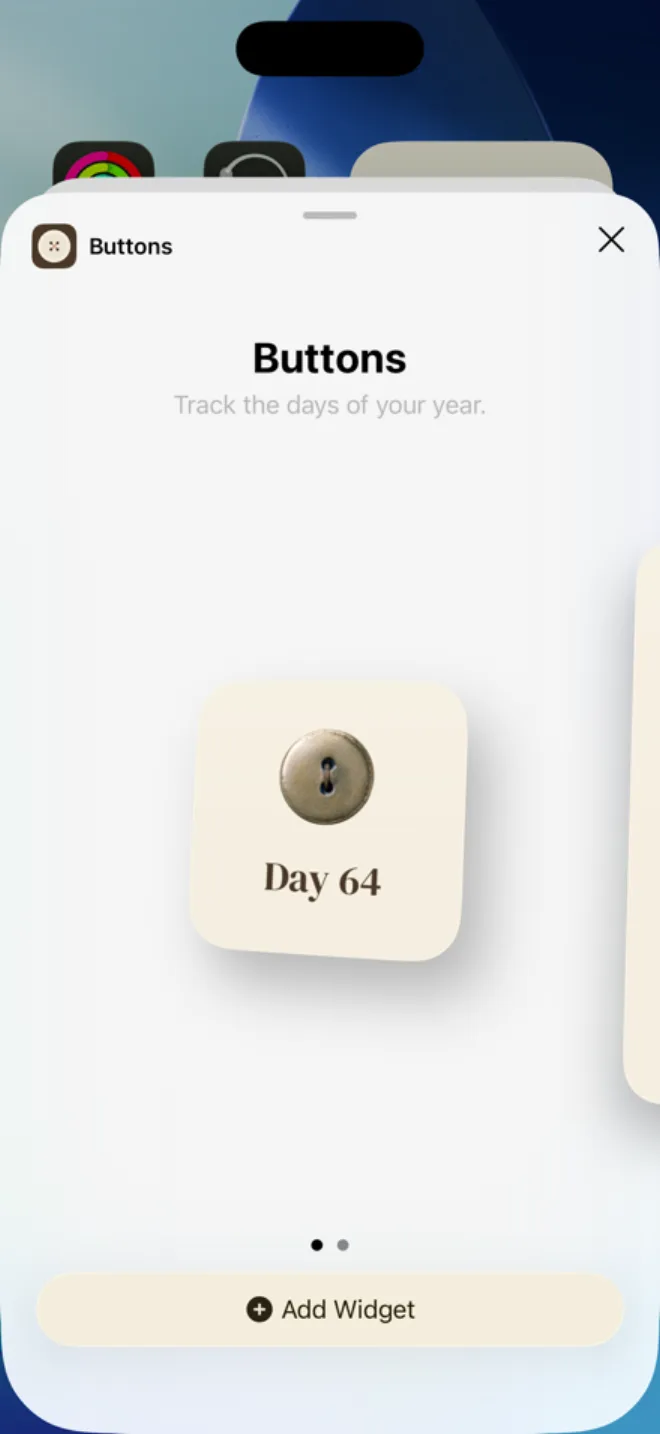
Count the days that matter to you.
The default calendar gives each day of the year a button. In the app, count up to see days passed or count down to see days remaining. Choose a different time scale for hours in a day, days in a week, or weeks in a year.
Widgets give you a glance at that passing time. Open the app for Grid, Pocket, and Canvas views. There are no streaks to maintain or reminders to dismiss.
Add a Home Screen widget.
- Install 365 Buttons from the App Store and open it.
- Touch and hold an empty area of your Home Screen.
- Tap Edit, then Add Widget. On some iOS versions, use the + button instead.
- Search for Buttons, choose a widget size, then tap Add Widget.
- Tap Done to save your Home Screen.
Add a Lock Screen widget.
Touch and hold your Lock Screen, tap Customize, and choose Lock Screen. Tap the widget area below the clock, choose Buttons, and add a widget. Tap Done when you are finished.
Apple also provides illustrated widget setup instructions.
What do I need?
365 Buttons requires iOS 18 or later and is available on iPhone and iPad. The app costs $1.99 USD on the US App Store. It has no account requirement and does not collect your data.
Get 365 Buttons on the App Store
Try the idea before you download.
Our visual year calendar shows the current year filling with buttons in your browser. For the app's three views and widgets, explore 365 Buttons.
Need help? Read support questions or email [email protected].